 Pulseri

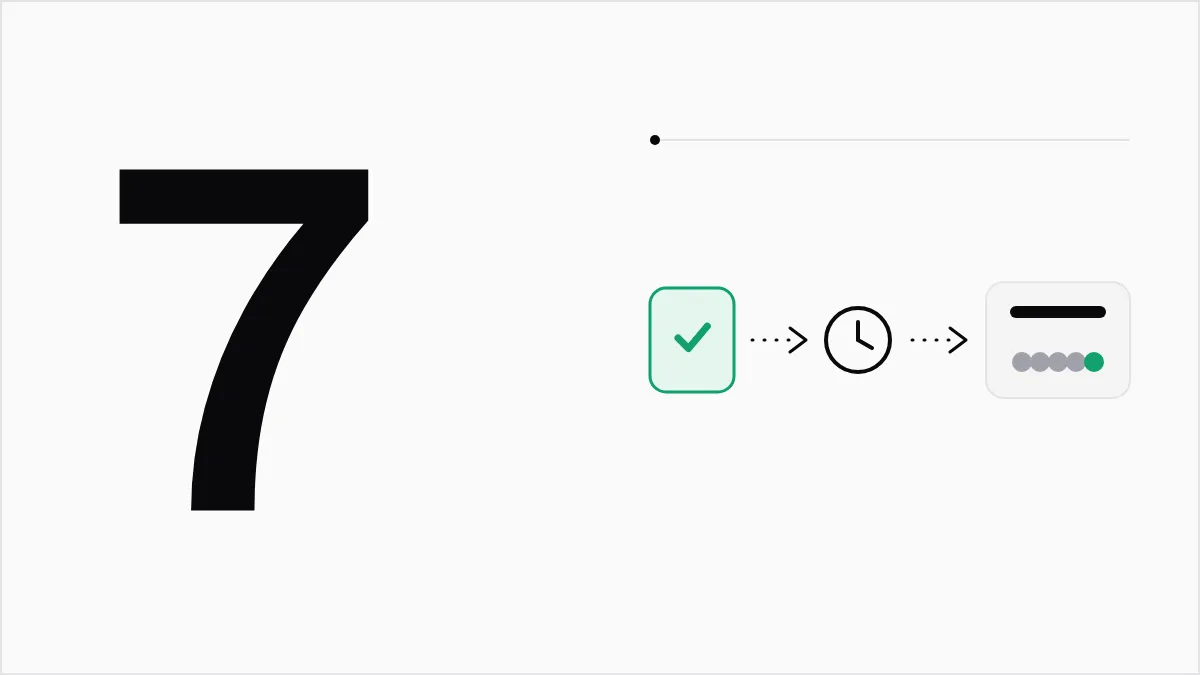
To send a CSAT survey when a Zendesk ticket is solved, connect Zendesk in Pulseri, create a triggered campaign, add the "Ticket solved" event and switch the campaign on. Setup takes about twenty minutes, mostly one-time work in Zendesk.
You need to be an admin in Zendesk and have a Pulseri role that can manage integrations, such as Administrator. Zendesk is not on every plan, so check the pricing page first.
Why measure support with CSAT
CSAT asks how satisfied someone was with one experience. A closed support ticket is the classic moment: the customer remembers what happened, and you can still fix a bad one.
To compare CSAT with NPS and effort scores, read NPS vs CSAT vs CES.
Zendesk has its own CSAT feature. Its help center says the survey email goes out after a ticket is set to solved, and that you can change how many hours later it is sent. 1 That suits you if you only need a number inside Zendesk. The steps below are for teams that want the score with their other surveys and alerts.
Before you start
Have these ready:
- A Zendesk account where you can open the Admin Center.
- A Pulseri role that can manage integrations.
- Your Zendesk subdomain. If you sign in at
acme.zendesk.com, it isacme. - A test ticket whose requester is your own email address.
Step 1: Open the Zendesk connection in Pulseri
In Pulseri, open Settings, then Integrations. Find Zendesk and press Connect. A window called "Connect Zendesk" opens.
Keep it open. It shows a Redirect URL with a copy button. You need it next.
Step 2: Create an OAuth client in Zendesk
Zendesk has no shared Pulseri app, so you create a small key for your own account. Zendesk describes the screen in its guide to OAuth. 2
- In Zendesk, open Admin Center, then Apps and integrations, then APIs, then Zendesk API.
- Open the OAuth Clients tab and add a client.
- Give it a name, such as "Pulseri".
- Set the client kind to Confidential. Pulseri needs a client secret, so the default Public kind will not work.
- Paste the Redirect URL you copied from Pulseri and save.
- Copy the Identifier and the Secret.
Treat the secret like a password.
Step 3: Finish the connection
Back in the Pulseri window, fill in three fields:
- Subdomain, for example
acme. - Client ID, which is the Identifier from Zendesk.
- Client secret, which is the Secret from Zendesk.
Press Save & connect. Pulseri sends you to Zendesk to approve access. Approve it.
When you return, Pulseri has added a webhook and a trigger to your Zendesk account. The trigger fires when a ticket's status changes to Solved. You build neither. The Zendesk card in Pulseri shows as connected.
Step 4: Create the CSAT campaign
A campaign is one survey with its rules. In Pulseri, open Campaigns and create a new one.
- Name it clearly, like "Support CSAT".
- For the metric, choose Customer Satisfaction. It asks "How satisfied were you with your recent experience?" on a 1 to 5 scale. You can type your own wording in the question field, such as "How did we do with your support request?"
- Set the campaign type to Triggered: fire off an event.
- Keep the channel as email.
- Design the email and the thank-you message if you wish.
Save once. You can add triggers after the campaign exists.
Step 5: Add the Ticket solved trigger
In the campaign, find Add a trigger.
- In Fires from, choose Zendesk.
- In Event, choose Ticket solved.
- Press Add trigger.
The trigger now shows a delay field, in seconds before sending. A survey that lands the second a ticket is solved can feel rushed. Try an hour to start, which is 3600 seconds. If customers often reopen tickets, try a day.
Choosing the delay
- Quick fixes, such as a password reset. An hour or two works.
- Hard problems that take days. Wait a day, so the customer can confirm the fix held.
- Customers who often reopen tickets. Wait longer, until the problem has stayed solved.
If comments say things like "I have not tried the fix yet", you asked too early. Lengthen the delay.
Step 6: Switch it on
Press Activate campaign. If a button is grayed out, hover over it. Pulseri tells you what is missing, such as a metric or a trigger.
From now on, each time a ticket is solved, Pulseri looks up the requester by email address, creates them if they are new, waits for your delay and sends the survey. Each event is counted once, so one solved ticket never sends two surveys.
Step 7: Test it before customers see it
- In Zendesk, create a ticket with your own email as the requester.
- Set the ticket to Solved.
- Wait for your delay. For a quick test, set it to 60 seconds and change it back later.
- Check your inbox, answer the survey and look at the answer in the campaign.
If nothing arrives, check that the campaign is active, the trigger says Ticket solved, and the email is not in spam. Then check that the Zendesk integration shows as connected in Settings, Integrations.
What to do with the answers
Add an alert so a bad score reaches your support lead the same day. The Slack alert guide shows how, using a rule such as "score 2 or lower". Read the comments on low scores first.
See also the post-support CSAT page.
Good habits
- Keep the question short. One rating and one open comment.
- Do not run two CSAT surveys for the same tickets. If you use Zendesk's own CSAT, turn it off for the tickets you send from Pulseri.
- Use the daily limit. CSAT has a limit on how many surveys one person can get in 24 hours. You can change it in your settings.
- Clean up if you disconnect. Check in the Zendesk Admin Center that the webhook and trigger Pulseri created are gone. Delete them if they remain.
Where Pulseri fits
Pulseri turns a solved ticket into a survey and a low score into a message for your team, alongside your NPS surveys and employee pulse.
See the integrations page for the other tools Pulseri connects to.
Sources
- Using CSAT (Zendesk Support help center) (retrieved 15 Oct 2026) Back to text
- Using OAuth authentication with your application (Zendesk Support help center) (retrieved 15 Oct 2026) Back to text